


Getting Started
Welcome to BuzzTree! We’re really excited to have you on board, and eager to get you started elevating your WhatsApp sales conversations.
There are 4 stages to BuzzTree set-up. We will walk you through these stages in details below –
- Setting up your account password
- Adding your team members & configuring settings
- Connecting BuzzTree with Bitrix
- Accessing BuzzTree Chrome plugin
Let’s dive in –
- Setting up your account password (For all users)
Once you subscribe to BuzzTree services, we will send you an email to set-up your password. The email will be sent to the email address you submitted while subscribing. This email id is your default admin user account. Default admin can add more users through dashboard and every added user will receive an email to set-up their own password. You will use the password you set and the email id (as username) to login to BuzzTree dashboard and a chrome plugin.
- Adding your team members & configuring settings (For admin users only)
Once you log into BuzzTree admin dashboard you will be on ‘Team Management’ page. If you have subscribed to more than one licenses, here you can add your team members by clicking on ‘Add user’ button.
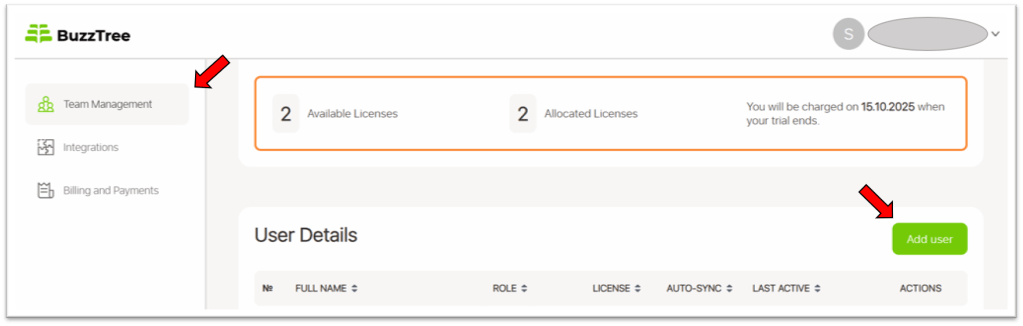
Once the user is added, you can assign the license and enable auto-sync setting if you want to enforce mandatory sync of all messages for all the linked contacts for that user.

- Connecting BuzzTree with CRM (For admin user only)
In next step you need to set-up integration with your CRM, to do so go to ‘Integrations’ tab. On Integrations page click on the ‘Connect’ button for the CRM you want to integrate with. Follow the instructions for the next few easy steps and we will get your CRM connected in no time.
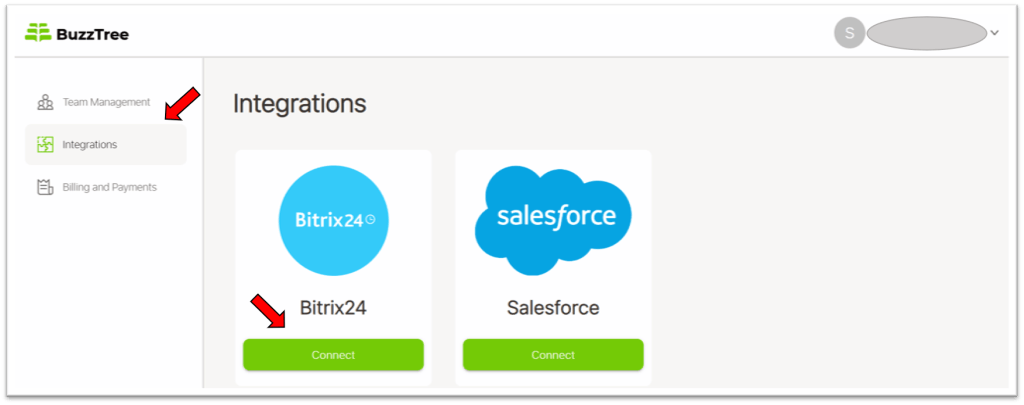
- Accessing BuzzTree Chrome plugin (For all users)
It’s important to note that only users who have been assigned a license will be able to login and use the BuzzTree Chrome plugin.
Let’s proceed with the last step – setting up your BuzzTree plugin. Click here, to download the BuzzTree Chrome plugin from Google Chrome Web Store.

Once downloaded, you can pin it toolbar so it’s easily available to access.

Next open WhatsApp web in Chrome browser tab and login to your WhatsApp account by scanning the QR code.

Once you are logged in to your WhatsApp web, BuzzTree plugin loads in the same window. Click on the ‘Login’ button at the top right corner to login to BuzzTree plugin using your credentials.

For all users other than default admin user, to establish user level integration between CRM and BuzzTree click on Settings > Connect to Bitrix. With just one click, your CRM is connected and you are all set to start using BuzzTree to elevate your sales chats on WhatsApp.
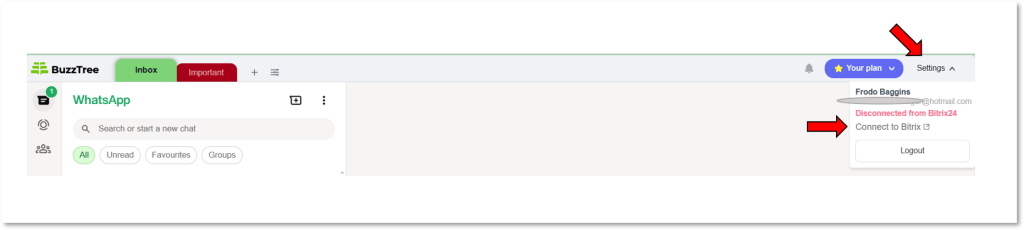
BuzzTree offers powerful features revolutionizing the way sales managers use WhatsApp to chat with customers. To leverage all the features make sure you carry out all above steps and connect it to your CRM.