


Step-by-step setup with Slack and Salesforce
How to Ask Slackbot About Every WhatsApp Chat
Your reps’ WhatsApp conversations already live in Salesforce through BuzzTree. Connect Slack and your team can ask about any of them in plain language — and see each day’s follow-ups posted to a channel. Nobody opens Salesforce.
Sales manager · Slack
“What did Happy Homes say about pricing on WhatsApp?”
Slackbot reads the synced conversations
Answer in seconds
from the synced chat
Recap posted to a channel
every day, per chat
Overview
Your WhatsApp Chats, Inside Slack
A guide to reaching the WhatsApp conversations BuzzTree syncs to Salesforce — from Slack, in two ways.
What you’ll set up

Pull
Ask Slackbot
Ask in plain language, from any channel or DM, about a synced chat, by contact or account.

Push
Daily recap in a channel
The triage flow posts each chat’s recap and next action to Slack, so follow-ups reach the team without anyone opening Salesforce.
How it works
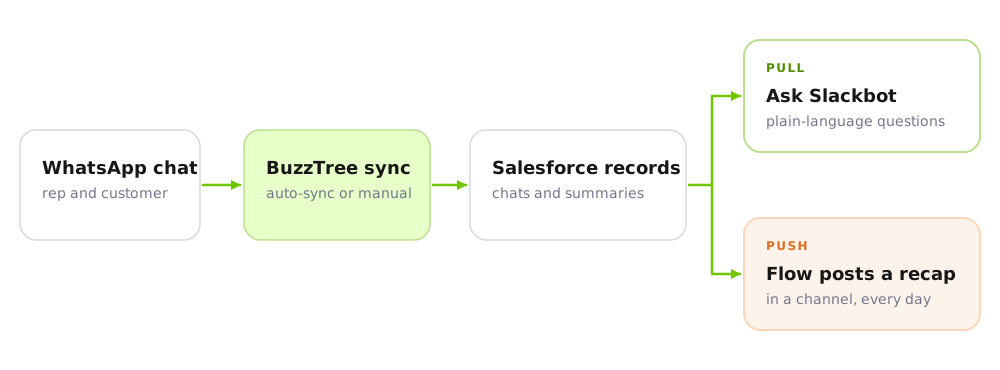
The conversation is saved once by BuzzTree. Both halves read the same Salesforce records, so there is nothing to copy into Slack.
What BuzzTree does here
BuzzTree puts each WhatsApp chat into Salesforce as records linked to the Contact, Account and Opportunity. Slack and Salesforce do the rest. That link is why you can ask by name.
Prerequisites
Before you start
Four things need to be in place. Asking (pull) and posting (push) share the first two.

1
BuzzTree is installed and syncing
The BuzzTree extension is connected to WhatsApp Web and Salesforce. At least one WhatsApp contact is linked to a Salesforce Contact with Auto-sync ON, and its chat shows in the BuzzTree tab on that Contact.

2
Slack is connected to Salesforce
Your Slack workspace and Salesforce org are connected, and each Slack member is mapped to their Salesforce user. People in Slack without a Salesforce account need a provisional Salesforce license.

3
Agentforce in Slack is available — to ask
The Agentforce for Slack managed package is installed. Each person who will ask needs both a Slack license and an Agentforce license.

4
You can build Flows — to post
A System Administrator profile (or equivalent), Salesforce for Slack integrations switched on, and the daily triage flow from the companion guide in place. The post in Part 3 uses its AI summary.
Tip
Asking works without the triage flow. For the best answers, build both: the flow’s Notes and BuzzTree Summaries give Slackbot short, clean records to draw on, instead of thousands of raw messages.
What BuzzTree puts in Salesforce
BuzzTree’s custom objects in your Salesforce org: chats, messages, participants and media. These are the records Slackbot reads.
Part 1
1
Connect Slack and open up the data
Four steps. The last one is a test question, so you know it works before you tell the team.
Step 1
Connect Salesforce and Slack
- A Slack admin connects the Salesforce org to Slack, following Slack’s Connect Salesforce and Slack guide.
- Map every Slack member who will use it to their Salesforce user.
Step 2
Enable Agentforce in Slack
- A Salesforce admin installs the Agentforce for Slack managed package.
- Go to Setup → Agents → Connections, create an agent connection and choose Slack as the Connected App.
- Confirm each person has both a Slack and an Agentforce license.
Step 3
Give people access to the BuzzTree data
- Slackbot works as the person asking, so it sees only what that person can see in Salesforce.
- Check their profile or permission set gives Read access to the WhatsApp Chat, WhatsApp Message, WhatsApp User and BuzzTree Summary objects, plus Contact and Account.
- Quick check: open a Contact as that user. If the chats show in the BuzzTree tab, Slackbot can reach them.
Step 4
Test with one question
- In Slack, open Slackbot and ask: “Summarize my latest WhatsApp chat with [contact name].” Pick a contact with Auto-sync ON.
- No answer? Re-check Step 3, confirm the WhatsApp contact is linked to a Salesforce Contact, and ask your admin to add the BuzzTree objects in the Slack custom-object settings in Salesforce.
Why this matters
BuzzTree links each chat to a Contact, Account and Opportunity. Slackbot follows those links, so “Happy Homes” or “John Mcbee” is enough to find the right conversation.
Part 2
2
Ask Slackbot about a WhatsApp chat
Once Part 1 works, ask the way you would ask a colleague. Name the contact or account, and add a time range if you want one.
Questions that work well
| You want to… | Ask Slackbot | It draws on |
|---|---|---|
| Catch up fast | “Summarize the latest WhatsApp chat with John Mcbee.” | Chat and its messages |
| Find objections | “What objections has Happy Homes raised on WhatsApp?” | Messages, summaries |
| Check a promise | “What did I promise John on WhatsApp this week?” | Messages sent by you |
| Spot a topic | “Which of my WhatsApp chats this week mention pricing?” | Message text |
| Know the next step | “What is the next step with Happy Homes?” | Triage flow tasks, events, summaries |
| Take over a deal | “I’m taking over Happy Homes. Brief me from their WhatsApp history.” | All chats on the Account |
Illustrative answer, based on the demo chat in the triage guide
Q: What did Happy Homes say about pricing on WhatsApp?
A: John Mcbee said pricing is a big factor for his team of 7. The Startup tier at about $19 per user per month “is pretty good”, and he asked what onboarding is like. A 30-minute Quick Start call was agreed for Friday at 11:00 AM.
Get better answers
- Use the contact or account name.
- Add a time range (“this week”).
- Ask about message text: attachments are stored as separate media records.
Part 3
3
Post the daily recap to a Slack channel
Add one action to the daily triage flow. Each chat that gets a recap and a next action is also posted to Slack.
Step 1
Prepare Slack and Salesforce
- Create a channel, for example #whatsapp-followups. Make it private: recaps contain customer details.
- Copy the channel ID (it starts with C or G) from the channel’s details.
- In Setup, accept the Slack Terms of Service and confirm an official Salesforce app is installed in your Slack workspace.
Step 2
Add the message formula
In Flow Builder, create a Text formula named fxSlackMessage. Slack renders the asterisks as bold.
"*WhatsApp follow-up: " & {!Get_Contact.Name}& " (" & {!Get_Contact.Account.Name} & ")*" & BR() & {!fxSummaryTrimmed} & BR() & BR() & "Next action: " & {!fxActionSubject}
Step 3
Add the Send Slack Message action
Open the triage flow. Between Update Records (Tag Chat) and Route_Next_Action, add an Action, choose Slack, then Send Slack Message, and set:
| Field | Value |
|---|---|
| Slack App | Your Salesforce app for Slack |
| Execute Action As | Slack App |
| Channel ID | The ID you copied in Step 1 |
| Slack Message | {!fxSlackMessage} |
Prefer a direct message?
Use the Contact owner’s Slack user ID instead of a channel ID and the recap arrives in the Messages tab of the Slack app.
Step 4
Debug, then activate
- Click Debug on a chat that had messages today. The recap should appear in your channel.
- Save as a new version and Activate. From then on it posts on the daily schedule.
See it in action
What the team sees in Slack
The demo chat between Saurabh and John Mcbee at Happy Homes, after the flow runs.
SF
Salesforce
APP
WhatsApp follow-up: John Mcbee (Happy Homes)
Outcome: Quick Start onboarding call agreed for Friday, 11:00 AM.
John was hesitant at first — the team is settled on Trello and Google Sheets. The live pain point is manual reporting: 3-4 hours a week. Team of 7 and price-sensitive. The Startup tier at ~$19/user/month landed well; the onboarding-effort objection was handled with a 30-minute guided Trello import.
Next step: send the Google Meet link.
Next action: Quick Start onboarding call – John Mcbee
Illustrative. The text comes from the AI summary the triage flow writes for the chat.
The point
The recap reaches the team in Slack, and anyone can ask Slackbot a follow-up about the same chat — without opening Salesforce.
Good to know

Only synced chats.
Slackbot can only answer from messages BuzzTree has synced. Auto-sync covers messages sent after it is switched on; use manual sync in direct chats to add earlier ones.

Same access as the person asking.
A chat is visible in Slack to whoever could open it in Salesforce. Review sharing on the BuzzTree objects before rollout, and post recaps to private channels.

Check key facts.
Answers are generated from the records. For figures, dates and commitments, confirm in the BuzzTree tab on the Contact.
BuzzTree
See it on your own data
Want this running on your real WhatsApp conversations — without building it yourself? We’ll walk you through it live and set it up on your org for free.
Or write us at info@buzztree.com
BuzzTree — WhatsApp, synced to your Salesforce. Turn scattered sales reps’ chats into structured CRM data and follow-ups your team never misses.